
Hi gadgetmanBrian readers! Today’s tip is about AirPods; one of Apple’s most-loved products of the last 5 years.
There are many features and functions, and I’ll cover some of these in upcoming posts, but today we’re going to discuss how to reset AirPods.
Why reset AirPods? Well as amazing as they are, sometimes AirPods just don’t work (or won’t charge). You put them in your ears and they either don’t connect, the audio is garbled, etc. When there are issues, you can first try and put the AirPods back in the case and try them again. If that doesn’t work you can reboot your phone, but if that doesn’t resolve the issue resetting the AirPods will usually fix any issues.
Resetting AirPods has 2 steps; un-pair and re-pair.
The AirPods are un-paired by following the steps on the Settings app, as below. Go to Settings -> Bluetooth and press the little i in a circle to the right of the AirPods name. Scroll to the bottom and press the Forget This Device button, and confirm your choice.

To re-pair, just open the case and a popup will appear at the bottom of the screen. Just follow the instructions, which includes pressing the small button on the back of the AirPods (see below, in blue circle) and you’ll be set.
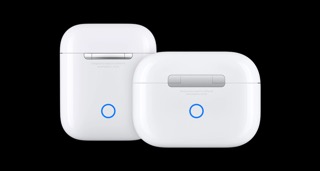
There is another, ‘deeper’ reset you can do which returns the AirPods to factory new settings. You follow the above instructions, but when you press the button on the back of the AirPods, hold the back button down until the light on the front flashes white and orange, then press connect on the phone.
This process should resolve most issues users have with AirPods. If issues continue after these steps you may want to schedule a gadgetmanBrian consultation or visit an Apple Store.
Enjoy!
 gadgetmanBrian | Personal Technology